6.2. Website
| Fields/Buttons | Description |
|---|---|
| Delete Button | Deletes the selected URL |
| Add New Button | Opens interface to enter a new link |
| Selection Checkbox | Selects the target link |
| Refresh Data Button | Refreshes data for the selected link |
Table: Website Section Functions
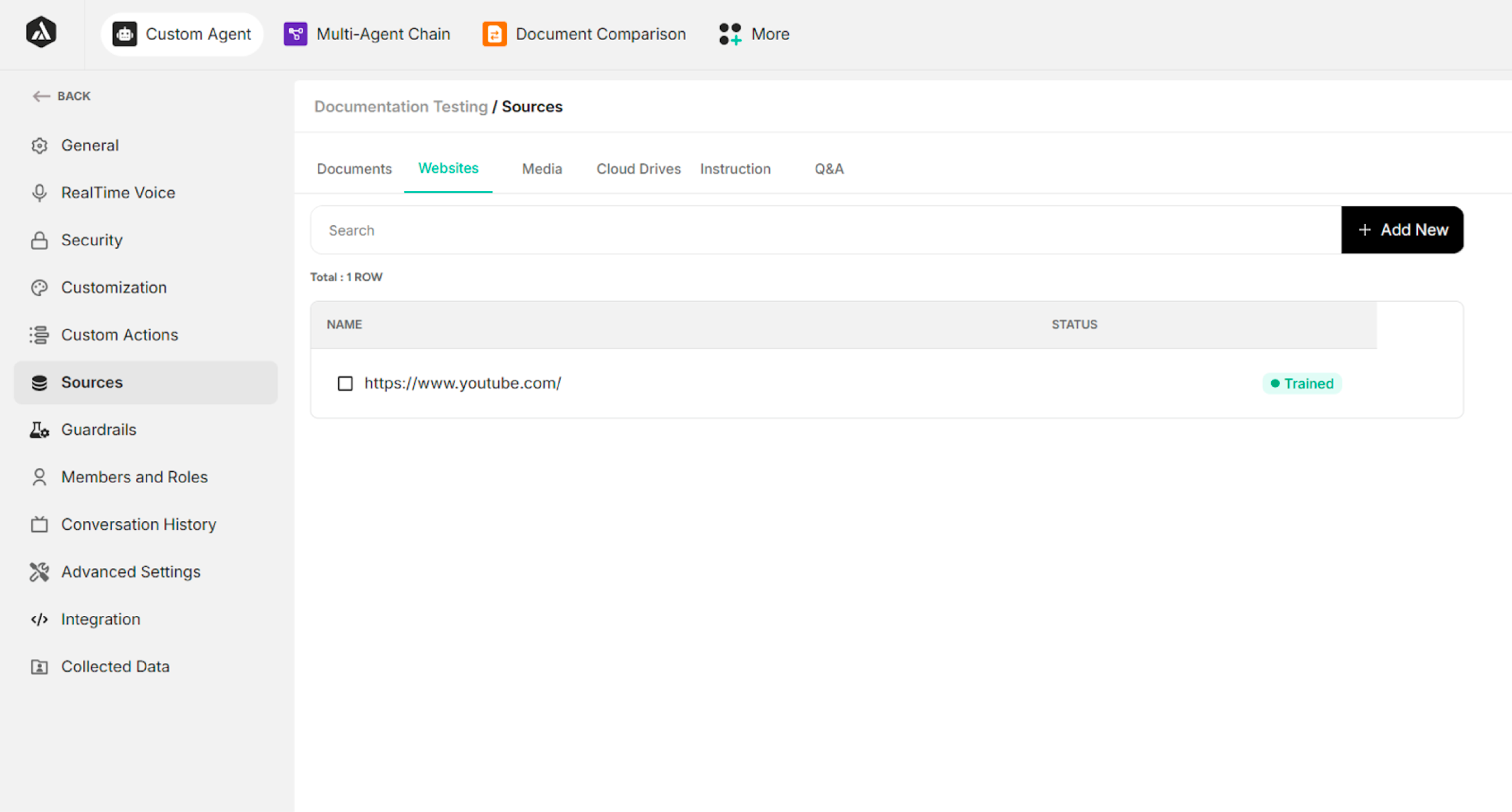
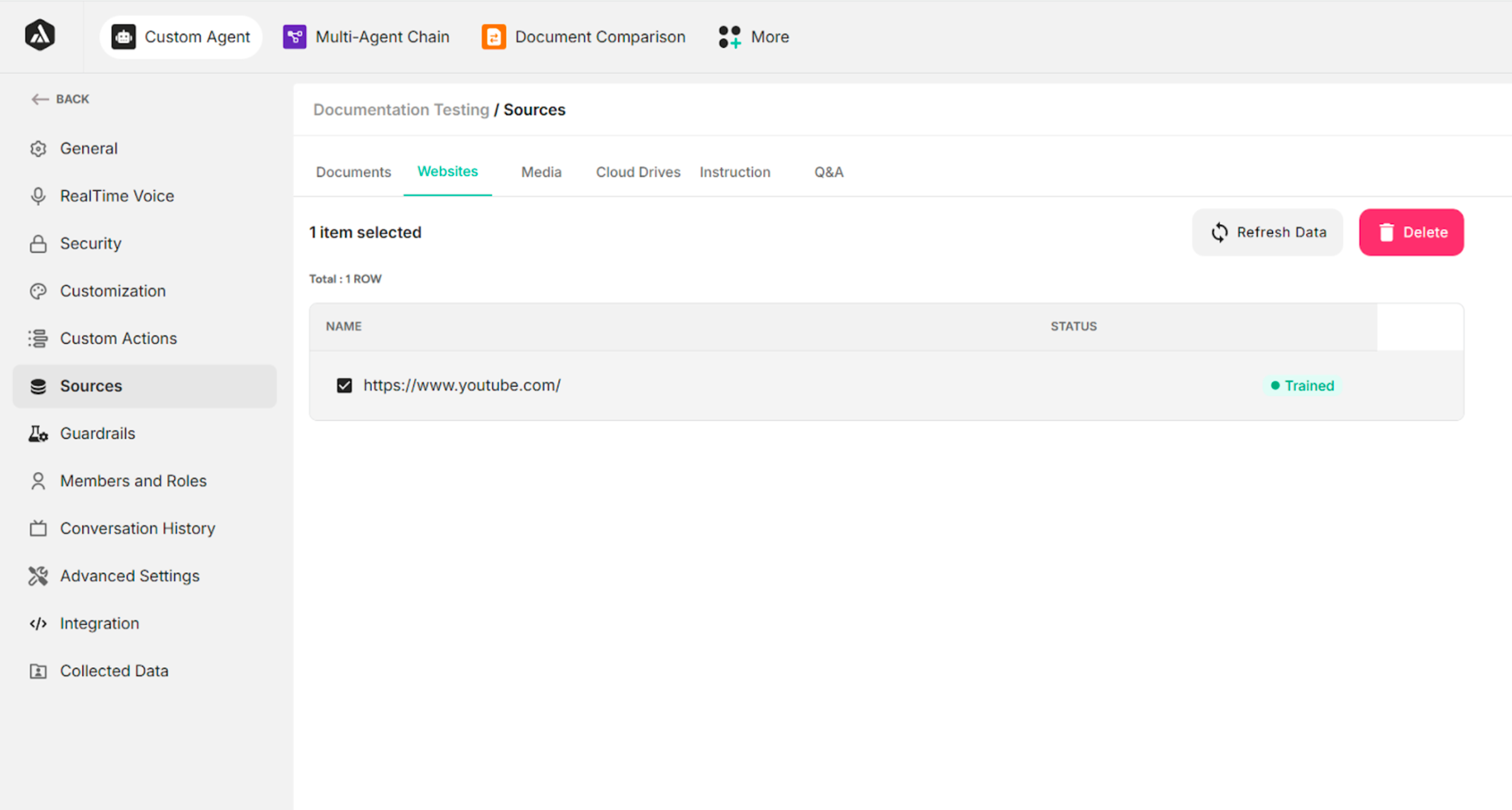 Figure: Functions available under Website Section
Add New Link
| Buttons | Description |
|---|---|
| Cancel | Cancels the link addition process |
| Single Link | Opens interface for adding a single website URL |
| Add Link | Adds the new link with Pending status; status changes to Trained after clicking the Save Changes button |
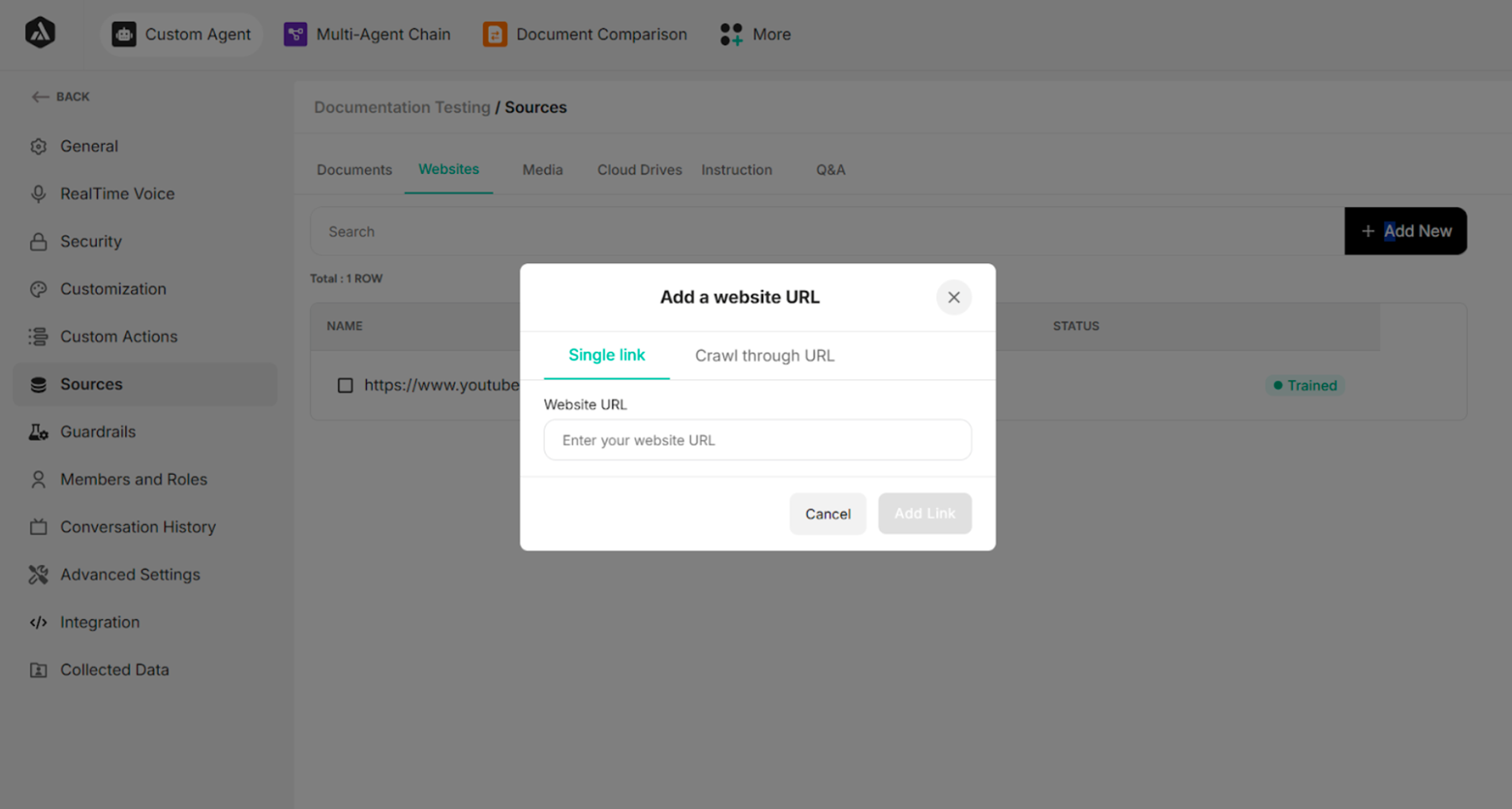 Figure: Single Link Option in Add Website URL Popup
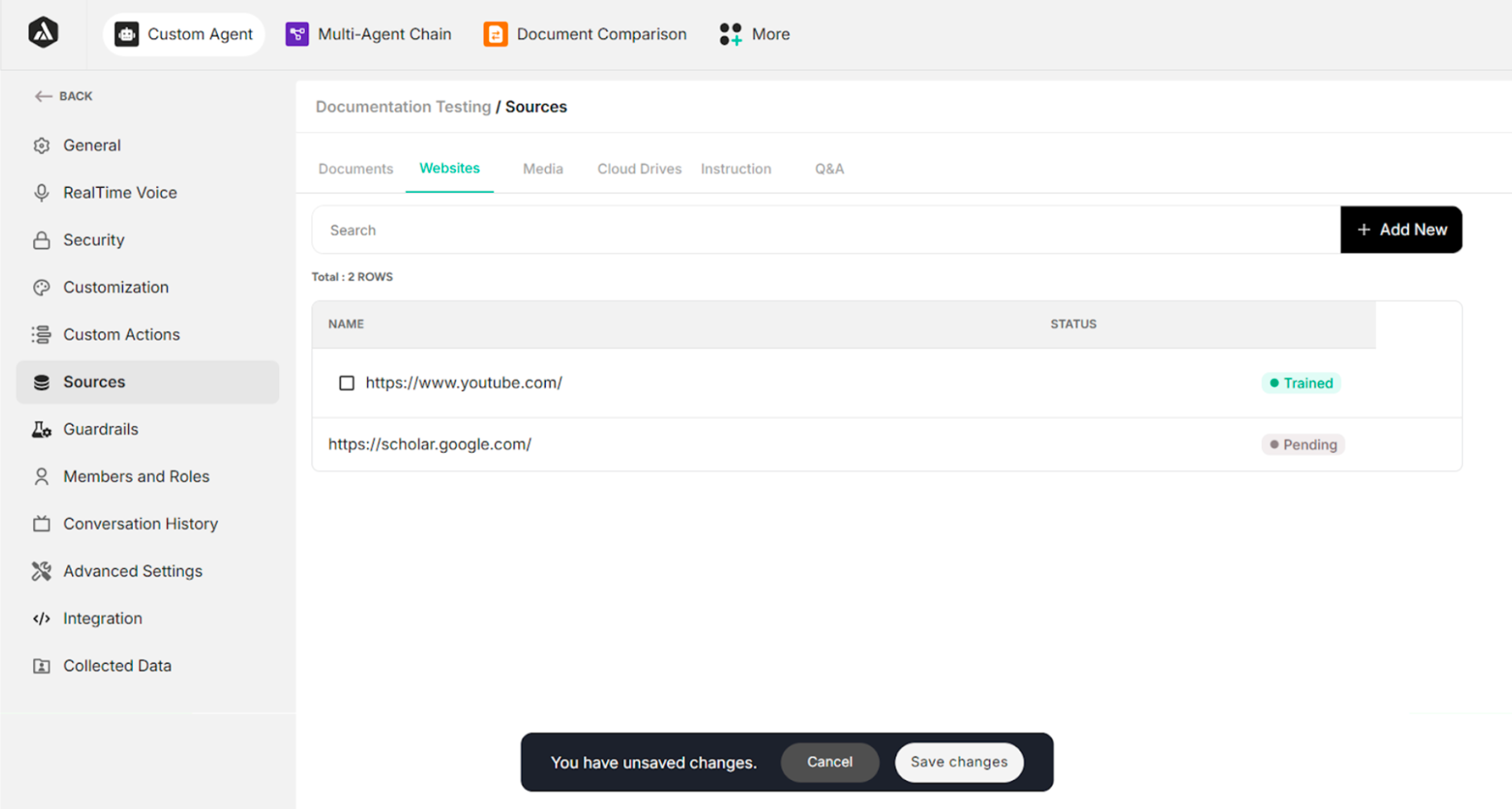 Figure: Interface After Clicking Add Link Button
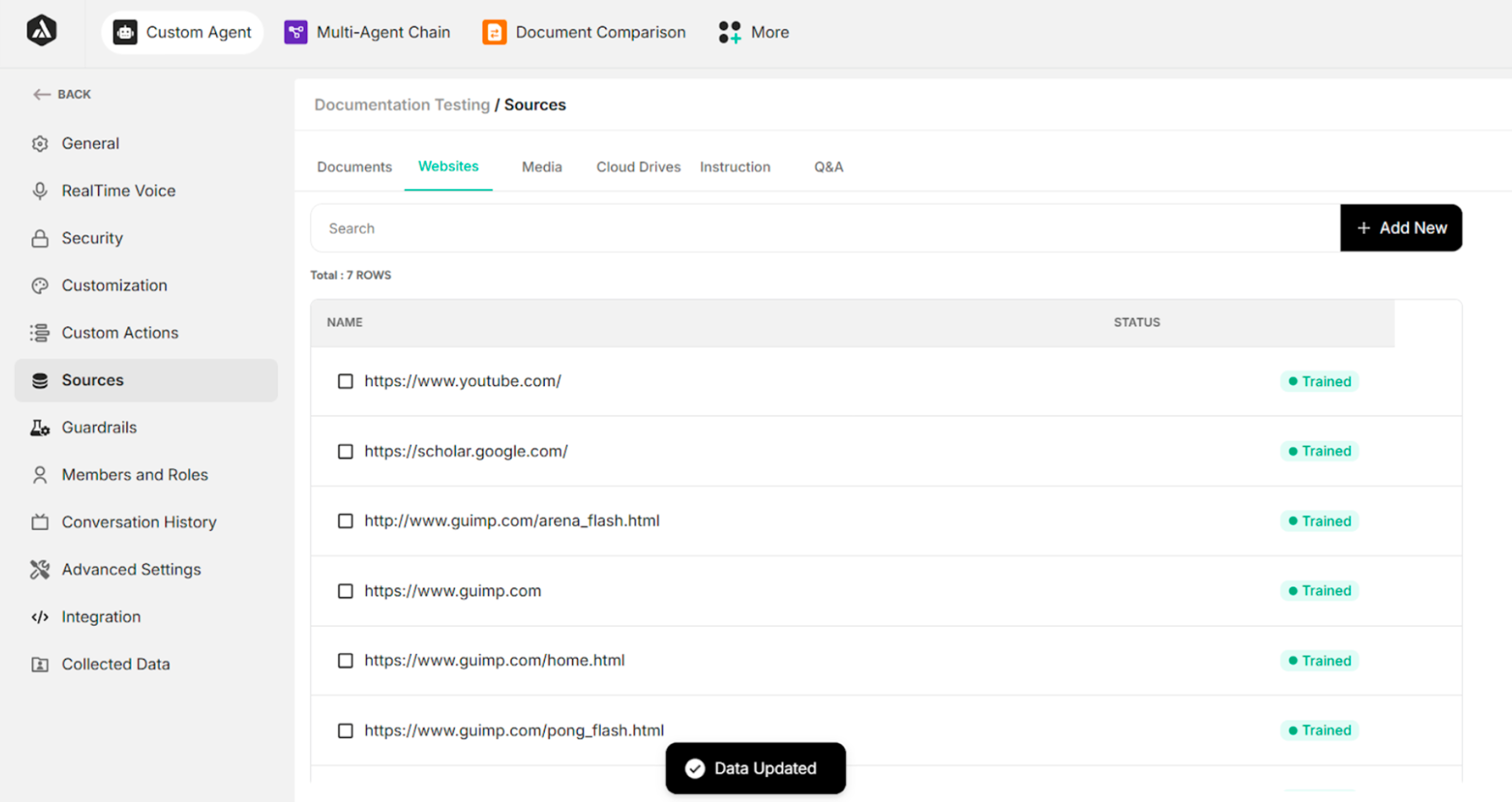 Figure: Interface After Clicking Save Changes Button
Crawl Through URLs
| Buttons | Description |
|---|---|
| Crawl through URLs | Initiates crawling process for URLs |
| Cancel | Cancels the URL crawling process |
| Crawl Links | Executes the link crawling operation |
Table: Crawl through URLs Confirmation Box Buttons
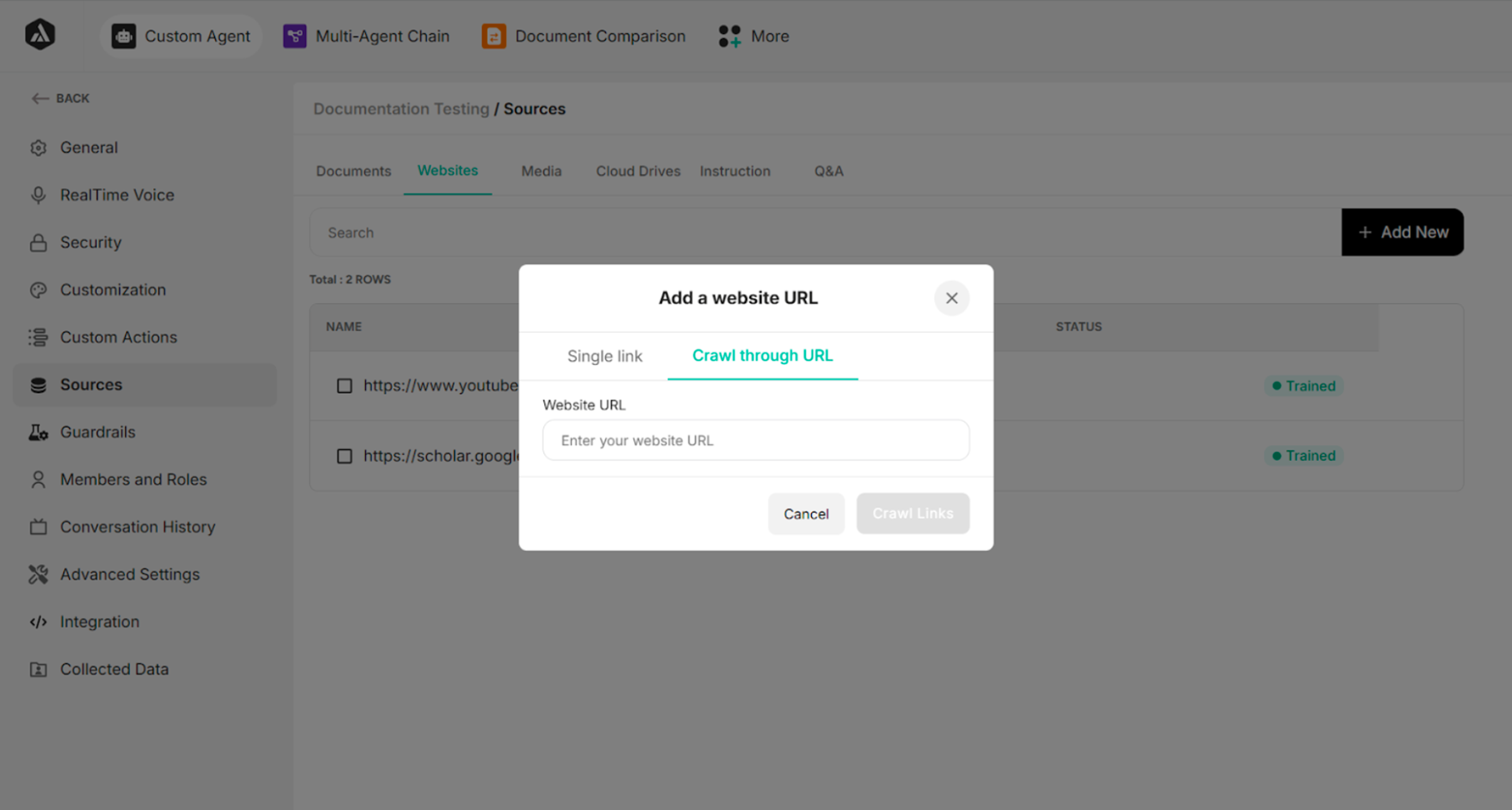 Figure: Crawl through URLs Confirmation Interface
Confirm Links Confirmation Box
| Buttons | Description |
|---|---|
| Cancel | Cancels the crawled links |
| Confirm Links | Adds the crawled links |
| Delete Icon | Removes the selected link |
Table: Confirm Links Confirmation Box Buttons
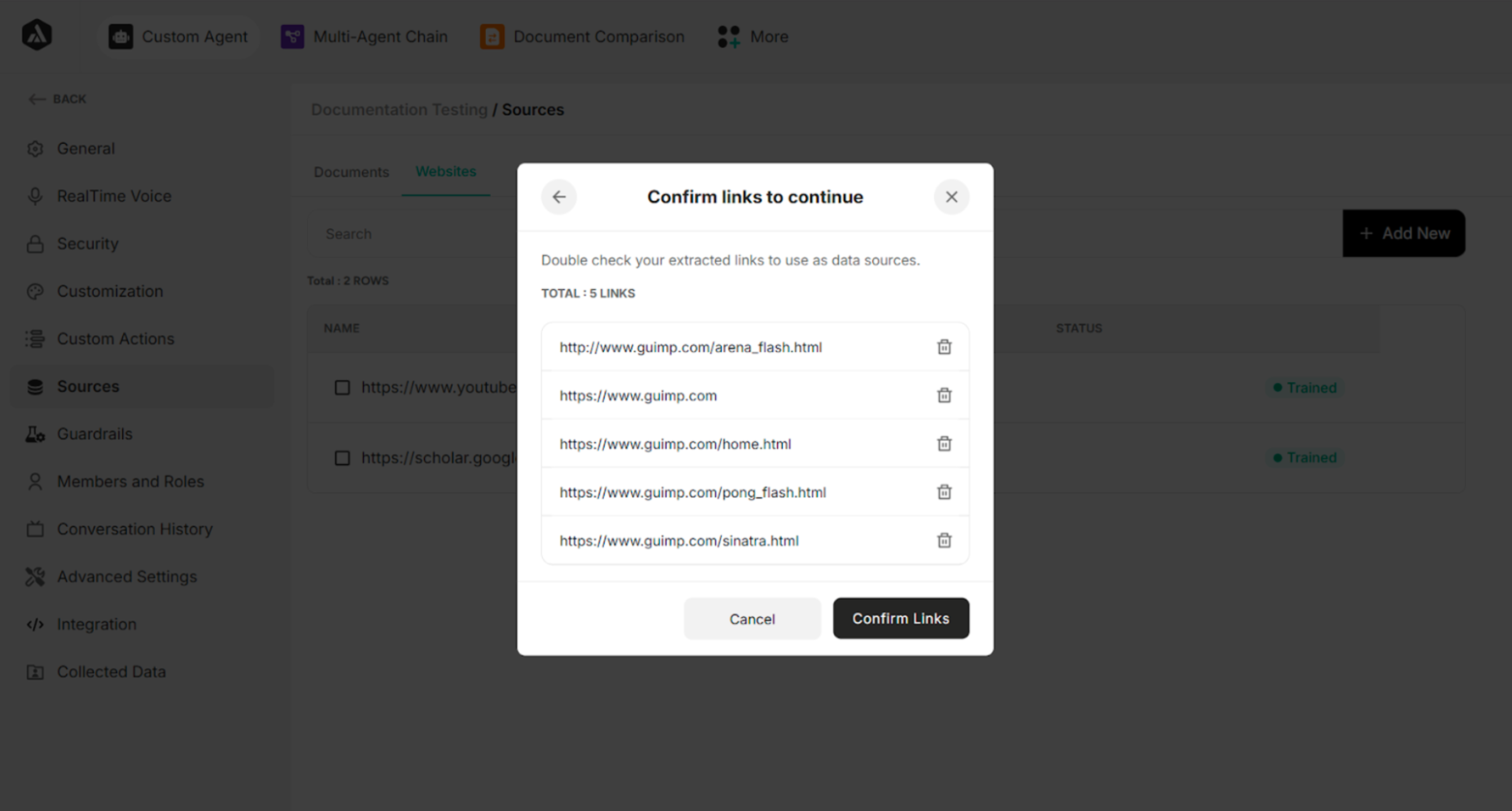 Figure: Confirm Links Confirmation Interface
Link Status
| Status | Description |
|---|---|
| Pending | Status assigned after clicking Add Link |
| Trained | Status assigned after clicking Save Changes |
Table: Link Status Definitions
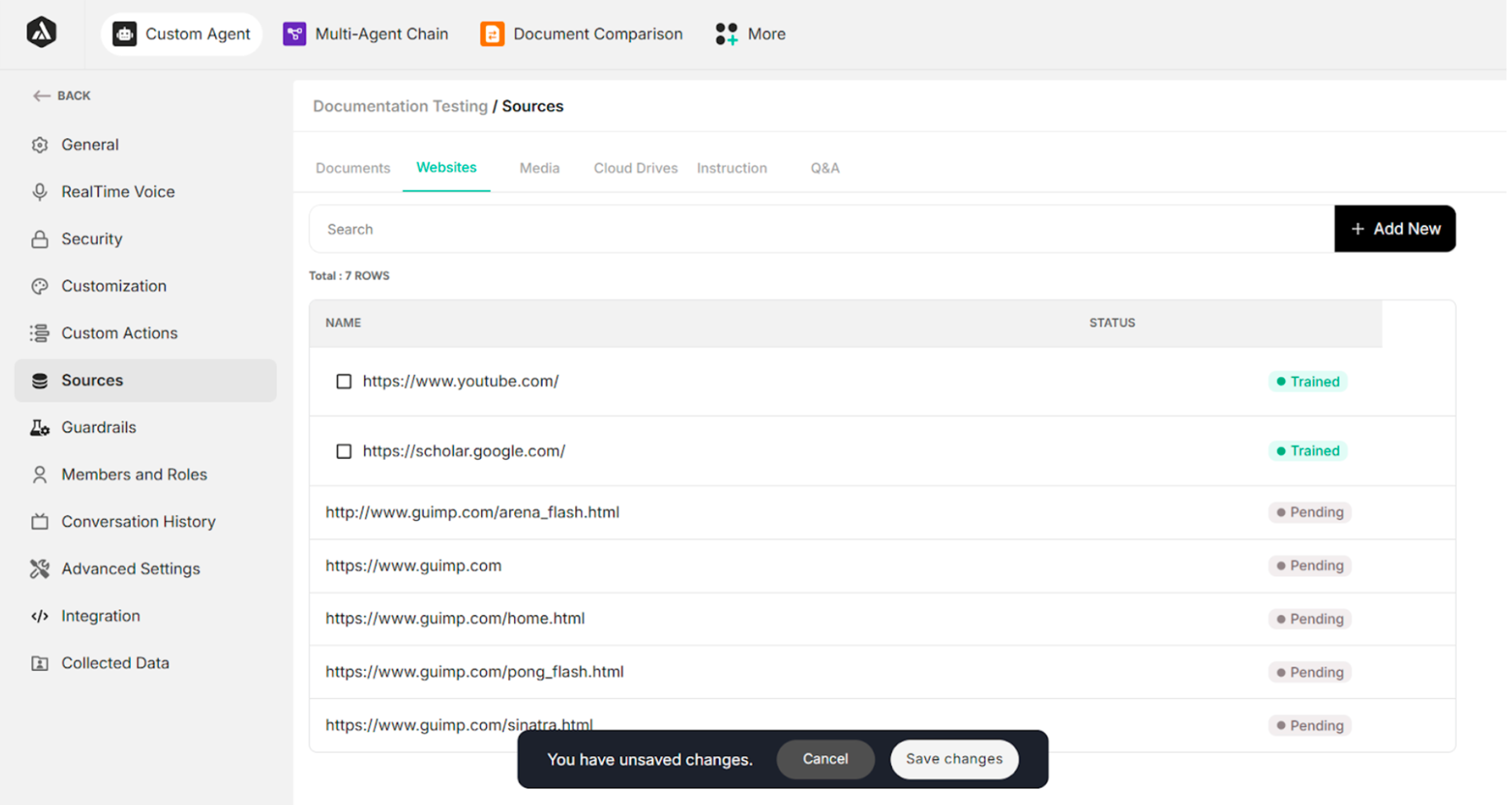 Figure: Interface After Clicking Confirm Links Button
Figure: Interface After Clicking Save Changes Button
Refresh and Delete URL
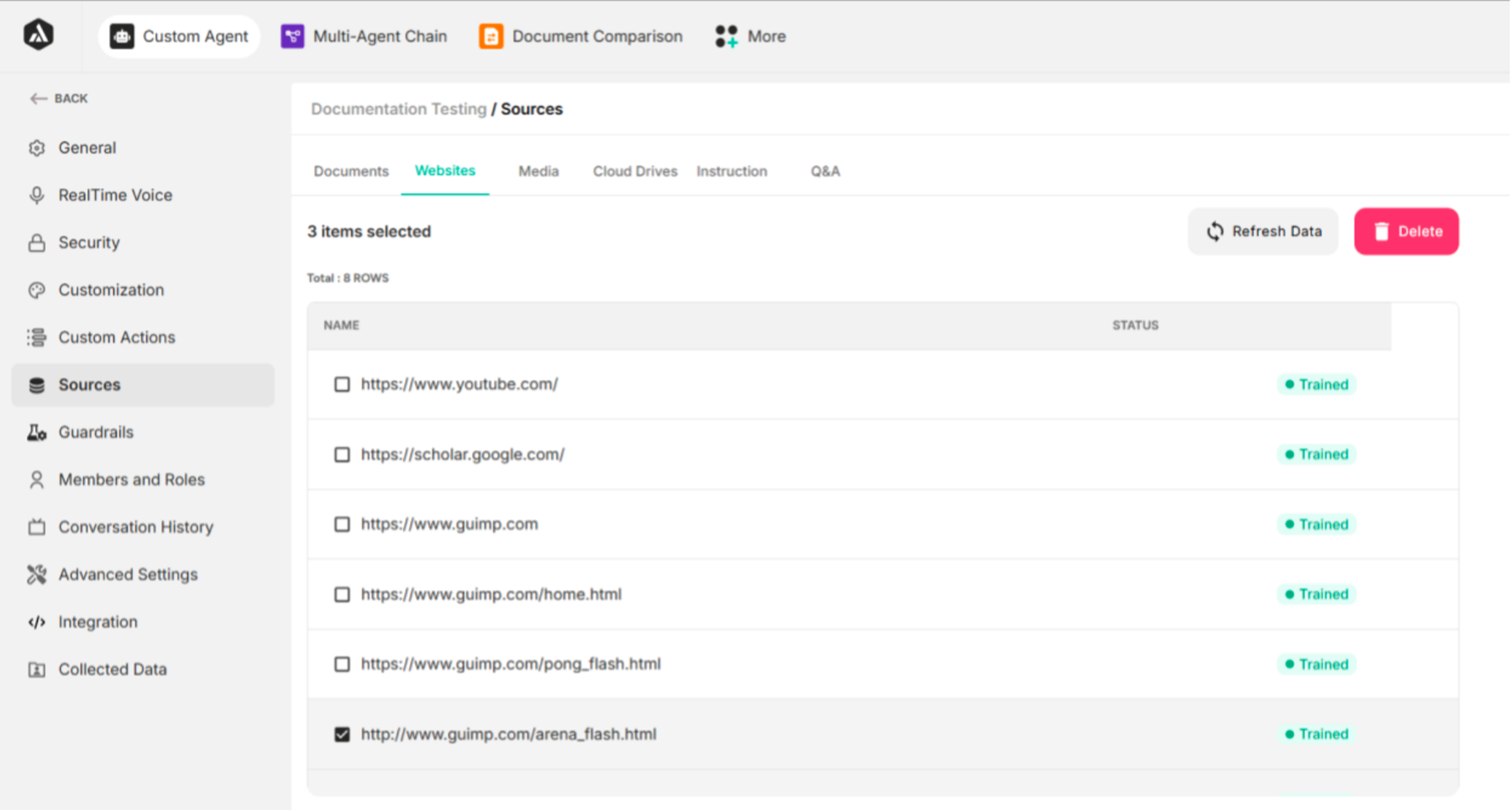 Figure: Interface After Selecting Checkbox
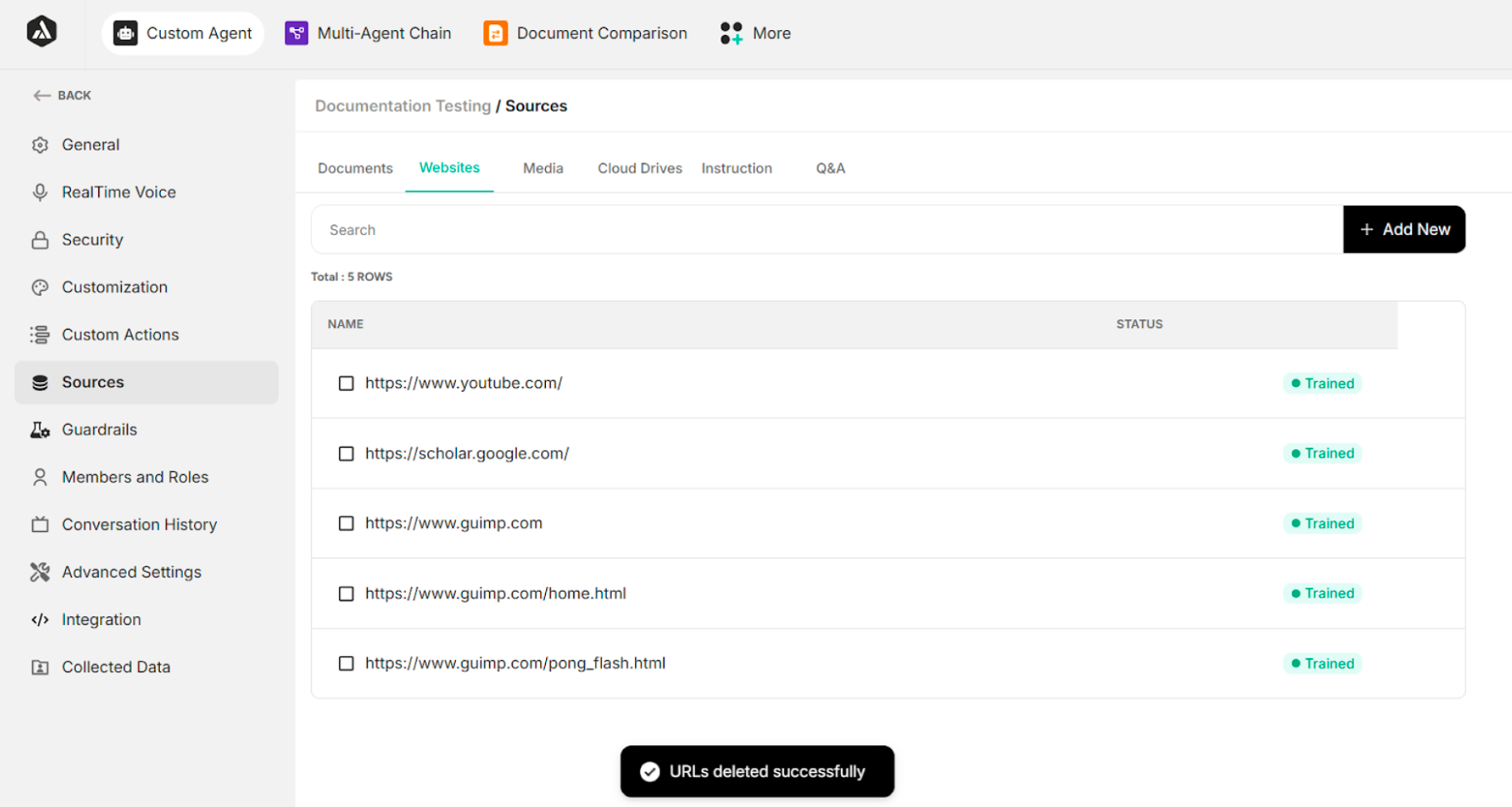 Figure: Interface After Clicking Delete Icon
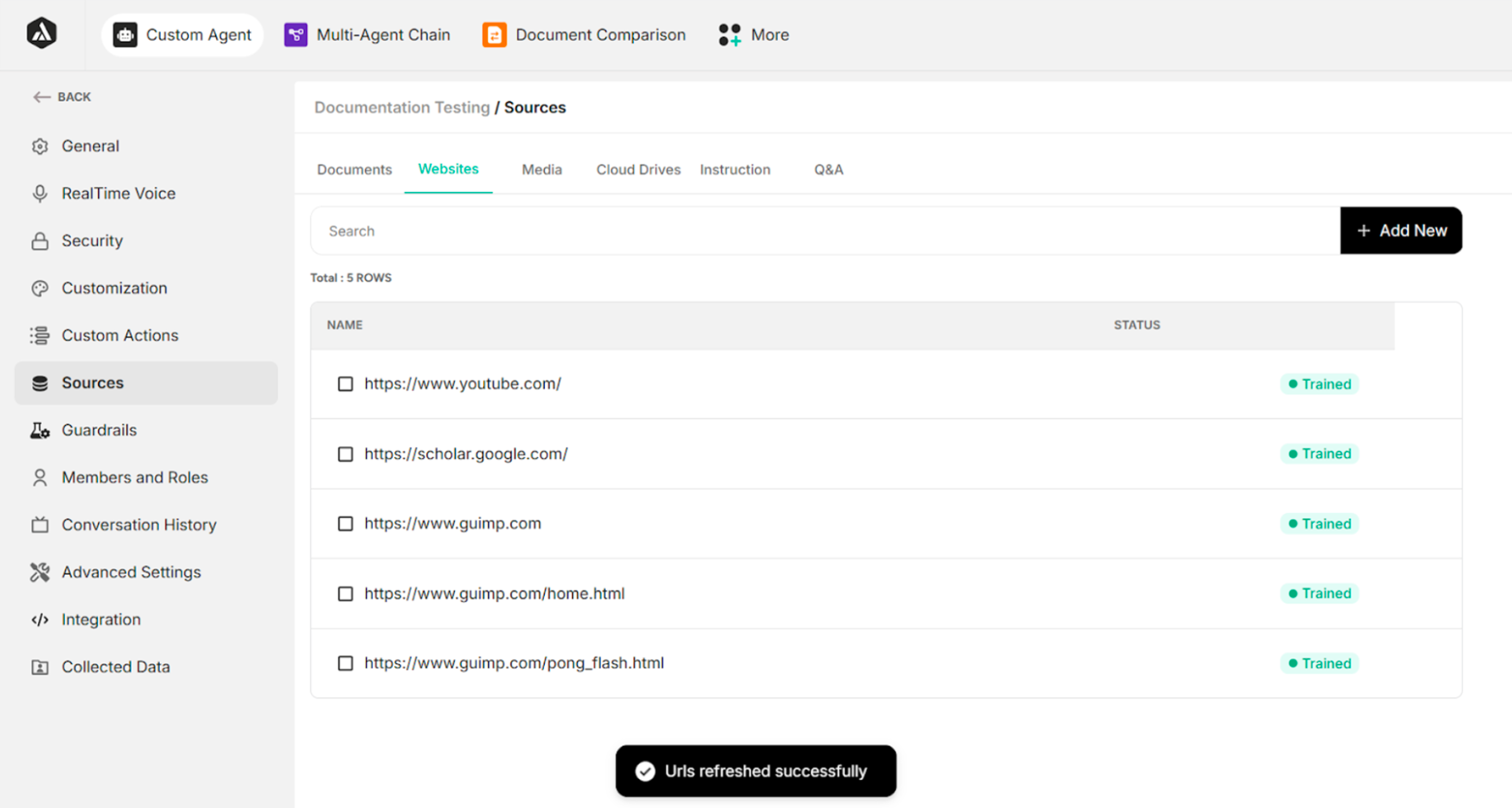 Figure: Interface After Clicking Refresh Data Button